
Here’s the situation most startup founders find themselves in: you have a product idea, maybe a few early customers, and approximately zero budget for a designer. You need a website that doesn’t look embarrassing. You’ve Googled ‘free website design tools’ and gotten a list of 47 options that all somehow made it onto the same article, ranked by which companies paid for placement.
This is not that article.
I’ve gone through the actual free plans of twelve tools that matter for startup website layout design in 2026. Not what the marketing page claims. Not what the pricing page says in small print. What you actually get when you sign up with a free account and try to design something real.
The tools split into three categories: layout design and wireframing tools (for planning what your site will look like before you build it), no-code website builders (for going from design to live site), and asset creation tools (for the images, icons, and visuals that go on those pages). A good startup website needs all three categories covered.
Let’s go through each one honestly.
Category 1: Layout Design and Wireframing Tools
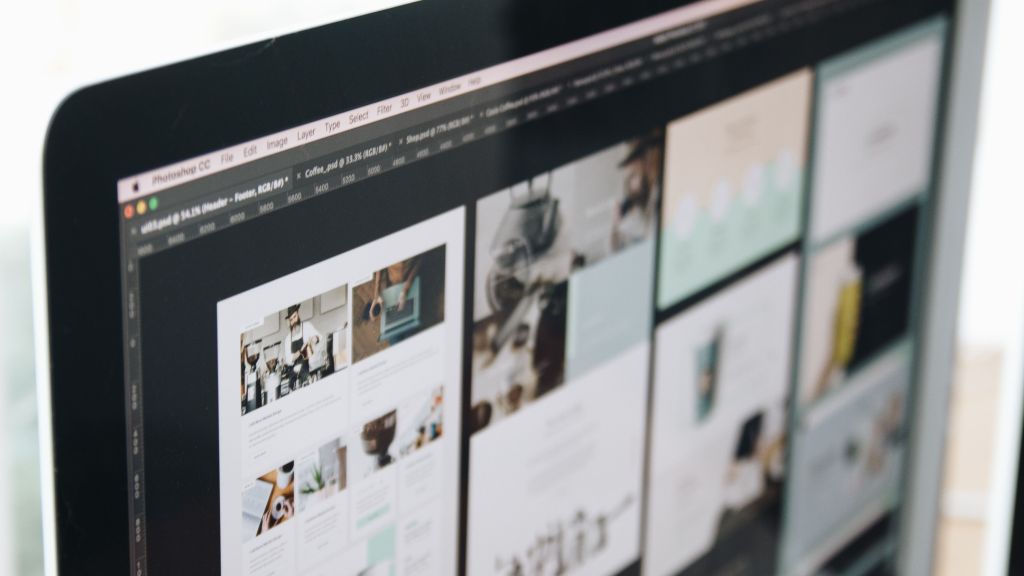
Before you build anything, you should sketch what it’s going to look like. This is the step most first-time website builders skip, and it’s usually why their finished sites feel cluttered and random. Layout design tools let you plan the structure — what goes where, how the navigation works, what the hero section says — before a single line of code or builder block is touched.
1. Figma — The Industry Standard, and It’s Free for Small Teams
| 🎨 Figma | ✅ Best for: UI/UX layout design, wireframing, team collaboration 🆓 Free plan gives: 3 projects, unlimited files in Drafts, full editor, components, prototyping ⚠️ Free limit: 3 project limit on free plan — Drafts are unlimited but unpublished |
Figma is the tool that professional UI/UX designers use at companies like Airbnb, Spotify, and Notion. The fact that you can access essentially the full design editor for free — on a browser, with no software to install — is genuinely remarkable.
For startup founders, Figma’s free plan is more than enough to design your entire website layout before handing it to a developer or building it yourself in Webflow or WordPress. You get access to the full component library system, which means you can design a button style once and apply it everywhere. You get prototyping, which means you can click through your design like a real website before anything is built. You get real-time collaboration, which means your co-founder can comment directly on your layouts.
The learning curve is real. Figma is a professional tool, and if you’ve never designed in a vector environment, the first few hours will feel frustrating. The workaround: Figma Community. Thousands of free startup website templates are available to download directly into your Figma account. You can start with a template that’s close to what you want and modify it rather than starting from a blank canvas.
- Free plan limit to know: You can only have 3 projects (not files — projects). Everything in Drafts doesn’t count toward this limit. For a startup designing one website, this is not a real constraint.
- Best use: Design your complete site layout here, get co-founder and early user feedback, then hand it to a developer or import it into a builder.
- URL: figma.com — no download required, sign in with Google
2. Penpot — The Open Source Figma Alternative
| 🖊️ Penpot | ✅ Best for: Figma-style design with zero free tier restrictions 🆓 Free plan gives: Unlimited projects, unlimited files, unlimited collaborators — genuinely unlimited ⚠️ Free limit: No offline desktop app on cloud version |
Penpot is what you use when Figma’s 3-project limit actually becomes a constraint, or when you want your design tool to be fully open source and self-hostable. It’s built on open web standards — SVG, CSS, HTML — which means the designs you create translate more directly to actual web code than Figma’s proprietary format.
The interface is clearly inspired by Figma and Sketch, so anyone who has used either will feel at home within an hour. The component system works similarly. Prototyping is available. Real-time collaboration works. And there are genuinely no free tier restrictions — unlimited everything on the cloud version.
What Penpot lacks compared to Figma: a smaller community template library, fewer third-party plugin integrations, and less widespread industry adoption (meaning fewer YouTube tutorials when you get stuck). But for a startup founder designing their own website layout for the first time, none of those gaps matter much.
- Best use: If you want to design multiple websites or projects without hitting Figma’s 3-project ceiling, Penpot is the answer.
- URL: penpot.app — browser-based, free, no account required to try it
3. Whimsical — For Fast Wireframes Without Design Overhead
| ✏️ Whimsical | ✅ Best for: Quick wireframes, user flow diagrams, and rough layouts 🆓 Free plan gives: 4 boards free per account — enough to wireframe one full website ⚠️ Free limit: 4 board limit is restrictive if you want to archive older work |
Not every layout planning session needs the full power of Figma. Sometimes you just want to sketch out where the headline goes, where the CTA button sits, and roughly how many sections the homepage needs — without worrying about fonts, colours, or component systems. That’s what Whimsical is for.
Whimsical’s wireframe mode is the fastest way to go from ‘I have an idea for a website layout’ to ‘I have a shareable visual that shows what I mean’ in under 20 minutes. The elements are intentionally low-fidelity — grey boxes, placeholder text, simple icons — because the point is to communicate structure, not design. It forces you to think about information hierarchy before you get distracted by whether the button should be blue or green.
The 4-board free limit sounds restrictive, but a 10-page startup website typically needs 3–5 wireframe boards: homepage, about/team, product/features, pricing, and contact. That’s within the free limit if you plan it right.
- Best use: First-pass layout planning before committing to Figma. Share wireframes with stakeholders to agree on structure before investing time in high-fidelity design.
- URL: whimsical.com
4. Relume — AI-Generated Sitemaps and Wireframes in Minutes
| 🤖 Relume | ✅ Best for: AI sitemap and wireframe generation from a text prompt 🆓 Free plan gives: Free plan includes AI sitemap generation and basic wireframe export ⚠️ Free limit: Figma/Webflow export requires paid plan — free plan is for planning only |
Relume is the newest category of tool on this list — an AI-assisted layout planning platform. You describe your startup and what the website needs to do, and Relume generates a complete sitemap (page structure) and initial wireframes for each page.
For startup founders who struggle with knowing where to start, Relume solves a real problem. The blank-canvas paralysis that hits when you open Figma and don’t know what to put on the homepage. Relume gives you a starting point — a reasonable, professionally-structured starting point — in about 90 seconds.
The free plan lets you generate sitemaps and view wireframes inside Relume’s own interface. Exporting those wireframes to Figma or building them in Webflow requires a paid plan. But even using Relume as a planning tool — generating the structure, then manually recreating the layouts in Figma — is a significant time saver over starting from scratch.
- Best use: Use it to answer ‘what pages does my startup site need and roughly what should be on each page?’ before opening any design tool.
- URL: relume.io
Category 2: No-Code Website Builders — From Layout to Live Site
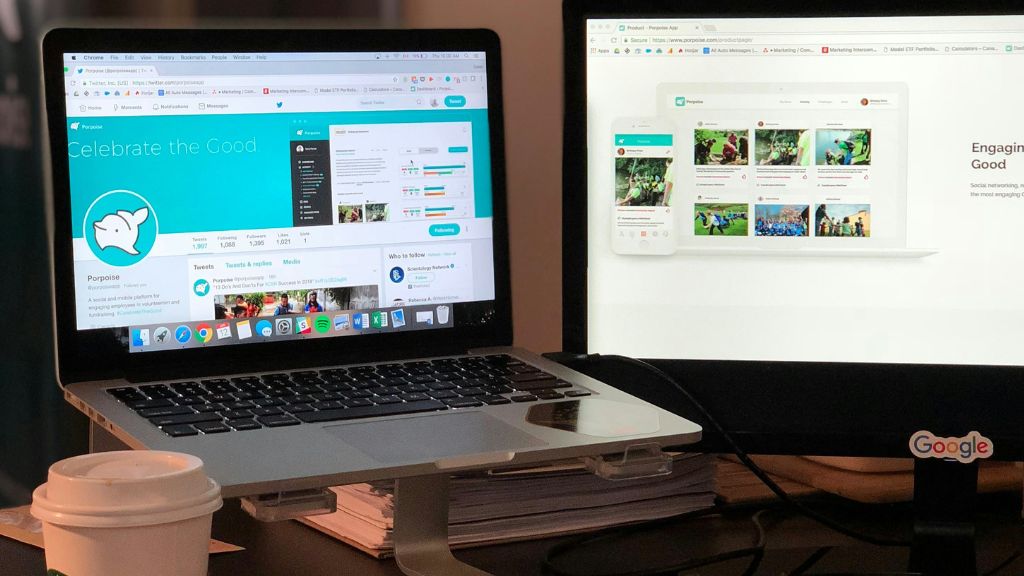
If you want to skip the handoff from design to developer entirely, these are the tools that let you build directly in the browser and publish a live URL. The quality range between them is significant.
5. Framer — Best Free Option for Design-Conscious Startups
| 🖥️ Framer | ✅ Best for: Publishing a real startup marketing site for free 🆓 Free plan gives: Custom domain connection on free plan, 1 published site, 1,000 visitors/month ⚠️ Free limit: 1,000 visitors/month is a real constraint once you start marketing |
If I had to recommend one free tool to a startup founder who needs to go from zero to a live, professional-looking website as fast as possible, it would be Framer.
Framer’s free plan is genuinely free in the sense that matters: you can connect a custom domain, publish a real website, and have it live on the internet with no Framer branding watermark on the page itself. The visitor limit — 1,000 per month — is the real constraint, but for a startup that’s still in early traction mode and not yet running paid ads or doing big PR pushes, 1,000 monthly visitors is often more than enough to get started.
The design quality ceiling on Framer is higher than almost anything else at any price. The animation system, the component library, and the overall output feel closer to something a professional design studio built than a drag-and-drop tool. Framer has templates for SaaS startups, mobile apps, agencies, and portfolios — and they’re genuinely good templates, not the generic corporate stock-photo layouts that plague other builders.
The learning curve sits between Canva (very easy) and Webflow (significant investment). Plan for 4–8 hours to get comfortable with Framer before you can move fast. After that, building and updating pages is genuinely quick.
- Best for: Design-led startups, SaaS products, apps, and founders who care deeply about how their website looks
- Free plan URL: framer.com
- Key tip: Start with a template. Framer’s blank canvas is intimidating. A good template gets you 70% of the way there and lets you focus on content.
6. Webflow — Most Powerful Free Builder, Steepest Learning Curve
| ⚙️ Webflow | ✅ Best for: Building complex, SEO-strong website structures visually 🆓 Free plan gives: 2 free projects, full CMS on free plan, publishable on webflow.io subdomain ⚠️ Free limit: Can’t connect custom domain without paid plan — must use .webflow.io URL |
Webflow is what designers use when they want full control over every CSS property without writing CSS by hand. It is genuinely the most powerful no-code website builder available — but it demands respect for that power. The learning curve is steep enough that Webflow runs its own University (free video courses) specifically because so many new users open the editor, feel overwhelmed, and close it.
For startup founders who have some background in design or development — or who are willing to invest a week in learning — Webflow’s free plan produces websites that outperform most paid alternatives in terms of design flexibility, animation quality, and SEO structure. Webflow generates genuinely clean HTML and CSS, which matters for page speed and search rankings in ways that visual builders with bloated code do not.
The free plan’s biggest constraint: you cannot connect a custom domain. Your site publishes to yoursite.webflow.io. For a startup that’s actively marketing or doing customer demos, that’s a significant presentational weakness. The Starter paid plan at $14/month removes this constraint.
- Best for: Founders with design background, complex startup sites with animations and CMS content, sites where SEO and page speed are primary concerns
- Not ideal for: First-time builders who need something live this week without a learning investment
- URL: webflow.com — try the free plan with Webflow University videos running in a second tab
7. Carrd — Fastest Route to a Single-Page Startup Site
| 📄 Carrd | ✅ Best for: One-page startup landing pages — waitlists, product teasers, coming soon 🆓 Free plan gives: 3 sites completely free, responsive, publishable on carrd.co subdomain ⚠️ Free limit: Single page only — no multi-page sites on free plan |
Most startup websites in their earliest stage are one page. A headline, a sub-headline, two or three feature highlights, social proof if you have it, and a call to action — email capture, waitlist signup, or a contact link. That’s it. If that’s where you are, Carrd is your fastest path to something live.
You can have a genuinely professional-looking single-page site up and live on a carrd.co subdomain within 90 minutes of creating your free account. No exaggeration. The editor is simple enough that there’s nothing to figure out — you click on what you want to change and change it.
The free plan gives you three sites. Connecting a custom domain costs $19 per year — one of the most affordable upgrade paths on this list. If you’re running a pre-launch waitlist or need a ‘coming soon’ page while your main site is being built, Carrd free is the right answer.
- Best for: Pre-launch pages, waitlists, single-feature product landing pages, personal founder profiles
- URL: carrd.co
8. Google Sites — Underrated, Completely Free, No Strings Attached
| 🔵 Google Sites | ✅ Best for: Simple multi-page startup websites with zero cost ever 🆓 Free plan gives: Unlimited sites, unlimited pages, custom domain connection, no storage limit ⚠️ Free limit: Very limited design control — can’t match Framer or Webflow aesthetically |
Google Sites gets dismissed because it looks basic. And it is basic, in the sense that you have limited control over fonts, spacing, and visual detail. But it does something none of the other free tools can claim: it is completely, permanently, unconditionally free. No visitor limits. No page limits. No storage limits. Custom domain connection at no cost. Unlimited sites.
For certain types of startups — B2B services, consulting, early-stage SaaS, internal tools — a clean, readable, fast-loading multi-page website that clearly communicates what the product does is more important than design sophistication. Google Sites delivers exactly that. It integrates natively with Google Drive, Google Docs, Google Maps, and YouTube, which means embedding content is genuinely effortless.
If your startup’s website exists primarily to inform rather than impress — to explain what you do, who you serve, and how to contact you — Google Sites is a legitimate option that a lot of people overlook because it doesn’t have an Instagram-worthy aesthetic.
- Best for: B2B startups, internal tools, knowledge bases, simple service businesses
- URL: sites.google.com — sign in with any Google account
Category 3: Visual Asset Tools — The Images, Icons, and Graphics Your Layout Needs
A well-structured layout with placeholder images and generic icons looks half-finished. These tools handle the visual content layer — the assets that make your site feel real and polished rather than demo-ready.
9. Canva — The Non-Designer’s Design Tool
| 🎭 Canva | ✅ Best for: Creating hero images, social proof graphics, feature illustrations, banners 🆓 Free plan gives: Thousands of templates, 5GB storage, 250,000+ free elements, brand kit (1 brand) ⚠️ Free limit: Some premium templates and elements require Canva Pro ($13/month) |
Canva occupies a specific and important role in the startup website toolkit. It is not a website builder and it is not a professional UI design tool. What it is: the fastest way for a non-designer to create website graphics that look intentional rather than assembled from stock images and default fonts.
Hero section background? Canva. Feature illustration for your pricing page? Canva. Team photo with consistent circular crop and brand colour border? Canva. Social proof quote graphics? Canva. Testimonial cards? Canva. You can create an entire startup website’s visual asset library in Canva’s free plan without touching a single paid element, as long as you’re selective about which templates you start from.
The website builder feature within Canva has improved significantly in 2026, but it remains secondary to the core design use case. Use Canva for assets; use Framer, Webflow, or WordPress for the actual site structure.
- Key free tip: Search for templates with the word ‘free’ filtered in — Canva shows you which templates use only free elements vs. which mix in Pro assets.
- URL: canva.com
10. Unsplash and Pexels — Free Photography That Doesn’t Look Like Stock Photography
| 📷 Unsplash / Pexels | ✅ Best for: High-quality photography for website hero images and content 🆓 Free plan gives: Completely free, no account required, no attribution required, commercial use allowed ⚠️ Free limit: No exclusivity — the same photos appear on many other websites |
The fastest way to make a startup website look cheap is to use obviously stock photography. The staged handshake. The person using a laptop in a coffee shop with an unconvincing smile. The team hugging in a meeting room. These photos undermine credibility immediately.
Unsplash and Pexels both offer high-quality, genuinely usable photography for free, with commercial use licences and no attribution requirement. The quality has improved substantially in recent years — both platforms now have editorial-quality images from professional photographers that don’t immediately read as ‘free stock.’
For startup website layouts, use these primarily for hero backgrounds (abstract textures, architectural details, natural environments work better than people for a first-draft site), blog post feature images, and context shots. Avoid photos of people unless they’re so specific to your industry that they clearly reference your actual use case.
- Unsplash: unsplash.com — strongest for editorial and lifestyle photography
- Pexels: pexels.com — stronger video library alongside photos
- For Indian startups: both have improved their India-specific content significantly in 2025–2026
11. Iconify — One Free Library for Every Icon You’ll Ever Need
| 🔣 Iconify | ✅ Best for: Accessing professional icon sets for website UI 🆓 Free plan gives: 100+ icon libraries, 150,000+ icons, completely free, no account needed ⚠️ Free limit: Some icon sets have specific licences — check before commercial use |
Every startup website needs icons. Feature section icons. Navigation icons. Footer social media icons. Benefit checkmarks. Without a good icon library, founders typically cobble together mismatched icons from different sources that end up with inconsistent visual weight, different stroke widths, and an overall incoherent feel.
Iconify solves this by aggregating over 150,000 icons from more than 100 icon sets — including Heroicons, Lucide, Phosphor, Material Icons, and Feather Icons — into a single searchable interface. You can filter by icon set to ensure visual consistency across your site, then export as SVG (which scales perfectly at any size and file size is tiny).
The Figma plugin for Iconify is one of the most useful Figma plugins available and it’s free. Install it once and you have access to the entire library directly inside your design without switching tabs.
- URL: iconify.design
- Figma plugin: Search ‘Iconify’ in Figma Community
12. Photopea — Free Photoshop Alternative in the Browser
| 🖼️ Photopea | ✅ Best for: Editing images, creating mockups, working with PSD files without Adobe subscription 🆓 Free plan gives: Full Photoshop-level feature set, PSD/XD/Sketch/Figma file compatibility, completely browser-based ⚠️ Free limit: Ads on the free plan (can be removed with a $9/month subscription) |
Sometimes you need to edit an actual image — remove a background, composite multiple photos, resize without quality loss, or work with a PSD file from a designer. Photoshop is expensive. GIMP is powerful but has a 2002-era interface that requires genuine patience. Photopea is the answer that most people don’t know about.
It runs entirely in the browser, opens PSD, XD, Sketch, and Figma files, has essentially every Photoshop tool available (layers, masks, blend modes, filters, type tools, the lot), and is completely free to use. There are ads on the free version — they sit in a side panel and are easy to ignore during a work session. If the ads bother you, a $9/month subscription removes them.
For startup founders who occasionally need to do real image editing without an Adobe subscription, Photopea handles everything a startup website build will throw at you.
- URL: photopea.com — no account required, works immediately
How to Actually Use These Tools Together — A Practical Workflow
Having twelve tools listed is only useful if you know which ones to use in what order. Here’s a practical startup website workflow using only the free tiers described above.
Week 1: Plan and Design
- Use Relume (free) to generate a sitemap and initial wireframe structure. Spend 30 minutes here — just plan the pages and rough content blocks.
- Move into Figma (free) or Penpot (free, no limits) and build out high-fidelity layouts for your homepage and 2–3 key inner pages. Use Iconify plugin for icons. Start from a Figma Community startup template rather than a blank canvas.
- Get visual assets from Unsplash or Pexels for hero imagery. Use Canva to create any custom graphics like feature illustrations or testimonial cards.
Week 2: Build and Publish
- If you want a polished design-led site: import your Figma layouts into Framer (free) and rebuild them in the Framer editor. Publish on a custom domain when ready.
- If you want maximum design control and SEO performance: use Webflow (free) with the webflow.io subdomain initially. Upgrade to connect your domain when you’re ready to launch publicly.
- If you need something live this week with minimal investment: Carrd (free) for a single-page launch site, or Google Sites (free) for a simple multi-page informational site.
The Tool Stack Decision in 30 Seconds
- Design-led startup, willing to invest time: Figma → Framer
- Maximum control, technical founder: Figma → Webflow
- Non-designer, need something up fast: Canva → Carrd or Wix free
- Pre-launch waitlist only: Carrd free — done in an afternoon
- B2B, information-first: Google Sites — unlimited, forever free
The One Mistake Most Startup Founders Make With Free Design Tools
They spend three weeks perfecting the layout before they have a single real customer conversation.
The tools in this list are genuinely powerful, and that power is a trap. You can get lost in Figma for days, tweaking spacing and component states and hover animations, before you’ve validated that anyone actually wants what your startup sells. The website is the last thing that matters in early-stage validation — and the tools that make it easy to build a beautiful website also make it dangerously easy to spend time on the wrong thing.
The right use of these tools at the startup stage: spend three days, not three weeks, on your website layout. Get something live, even imperfect. Then spend the time you saved on talking to potential customers.
Your startup website doesn’t need to be beautiful at launch. It needs to be clear. Clear beats beautiful, every single time, in the early stage. These free tools are powerful enough to make it both — but only once you’ve validated that the words on the page are the right words.